
Updated: February 2026 — This article has been refreshed with the latest hardware recommendations, pricing updates, and 2026 specs to help you make informed decisions about your design workstation.
Back in the glorious 1990s and early 2000s—when digital gobos were revolutionary and sound designers still carried CDs—software developers created programs that worked within hardware limitations. Everyone's Windows 95/98 machines had roughly similar specs, and most users could run standard software without their computers having existential crises.
Fast-forward to 2026, and the script has flipped dramatically. Software developers regularly push out updates that demand increasingly powerful hardware. That Vectorworks upgrade needs more RAM. The latest QLab is hungry for processing power. Your rendering software wonders why you're still using last decade's graphics card.
This isn't just frustrating—for theatre designers working on tight deadlines and tighter budgets, it's a creative emergency waiting to happen.
Why Theatre Designers Should Care About Hardware
Your computer is your primary collaborator as a theatre designer, whether creating lighting, scenery, costumes, projections, or sound. Here's why understanding its components matters:
1. Your Creative Vision Depends On It
When your hardware can't keep up with your software, your creative process suffers. Imagine trying to program complex lighting cues when your computer freezes every few minutes, or attempting to render a 3D scenic model when your machine crashes repeatedly. Technical limitations become creative limitations.
2. Theatre Work Has Unique Computing Demands
Theatre designers juggle multiple resource-intensive applications simultaneously. You might have Vectorworks rendering a 3D model while Photoshop processes texture maps and Chrome displays 47 tabs of fabric research. This multitasking demands serious computing power.
3. Budget Decisions Matter More Than Ever
In 2026, a well-configured $1,200 machine can outperform a poorly-spec'd $2,500 computer. Understanding hardware helps you make smart purchasing decisions, whether you're spending your own money or advocating for departmental equipment budgets.
"Your computer is your primary creative collaborator. Understanding its components isn't optional—it's essential for professional theatre design work."
The Core Components: What Actually Matters
Let's break down the essential hardware components and why they matter for theatre design work:
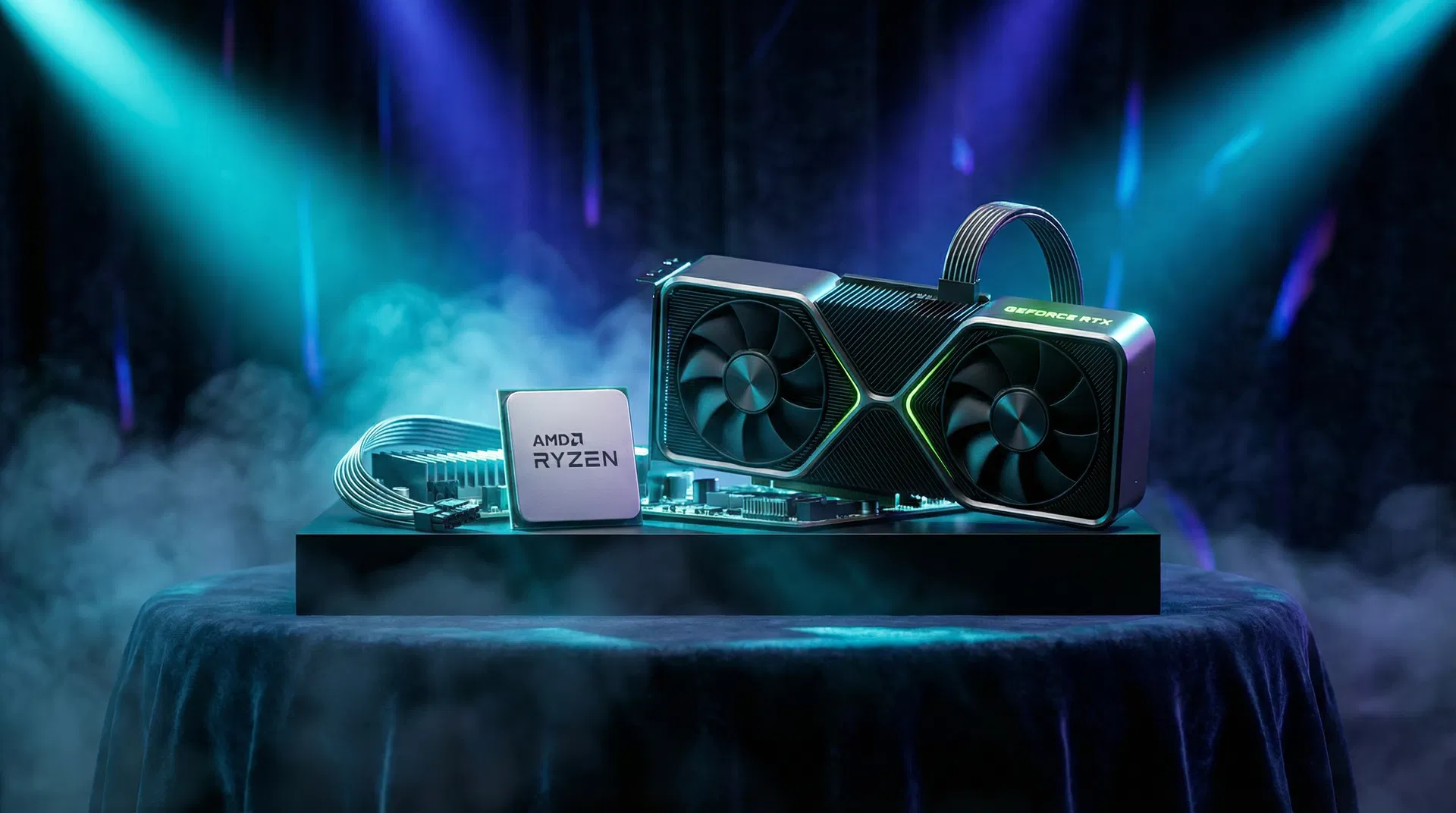
CPU (Central Processing Unit): The Brain
The CPU handles most of your computer's thinking. For theatre designers, this means:
- Running your operating system and applications
- Processing complex calculations in CAD software
- Managing multiple applications simultaneously
- Handling real-time lighting visualization
2026 Recommendations:
- Budget ($150-250): Intel Core i5-14400 or AMD Ryzen 5 7600 — Solid for basic Vectorworks, QLab, and Photoshop work
- Mid-Range ($300-450): Intel Core i7-14700K or AMD Ryzen 7 7800X3D — Excellent for complex 3D modeling and rendering
- High-End ($500-700): Intel Core i9-14900K or AMD Ryzen 9 7950X3D — Professional-grade for intensive rendering and simulation
- Apple Silicon: M4 Pro (16-core) or M4 Max (24-core) — Exceptional performance-per-watt for MacBook users
GPU (Graphics Processing Unit): The Visual Powerhouse
The GPU renders everything you see on screen. For theatre designers, this is critical for:
- Real-time 3D viewport navigation in Vectorworks
- Accelerated rendering in visualization software
- Smooth playback of high-resolution projection content
- Running multiple displays simultaneously
2026 Recommendations:
- Budget ($200-350): NVIDIA RTX 4060 or AMD RX 7600 XT — Good for basic 3D work and dual displays
- Mid-Range ($500-700): NVIDIA RTX 4070 Super or AMD RX 7800 XT — Excellent for complex scenes and fast rendering
- High-End ($1000-1600): NVIDIA RTX 4080 Super or AMD RX 7900 XTX — Professional-grade for intensive visualization
- Apple Silicon: M4 Pro/Max integrated GPU — Surprisingly capable for most theatre design tasks
RAM (Random Access Memory): The Workspace
RAM is your computer's short-term memory—the desk space where active work happens. Theatre designers need substantial RAM because we work with:
- Large 3D models with thousands of objects
- High-resolution texture files and images
- Multiple applications running simultaneously
- Complex lighting plots with hundreds of fixtures
2026 Recommendations:
- Minimum: 16GB DDR5 — Adequate for basic design work with occasional slowdowns
- Recommended: 32GB DDR5 — Sweet spot for most theatre designers, handles complex projects smoothly
- Professional: 64GB+ DDR5 — For intensive rendering, large-scale projects, or running virtual machines
- Apple Silicon: 18GB unified memory minimum, 36GB+ recommended (unified memory is more efficient)
Storage: Speed vs. Capacity
Storage has evolved dramatically. In 2026, the question isn't just how much storage, but what type:
- NVMe SSD (Required): 1TB minimum for your primary drive — Fast application loading and file access
- Secondary Storage: 2TB+ SATA SSD or HDD for project archives and asset libraries
- External Backup: Redundant backup drives (3-2-1 backup rule: 3 copies, 2 different media, 1 offsite)
"In 2026, running professional design software on a hard disk drive is like trying to run a Broadway show with gas lighting—technically possible, but why would you?"
The Mac vs. PC Debate: A Personal Take
I am a big advocate for Apple Computing. I used to have PCs. I remember when Tony-winning scenic designer Beowulf Boritt was in a commercial for Microsoft…
This was a terrible purchase for myself, and Beowulf, if you are reading this, I want my money back.
Mac Advantages
- Ecosystem Integration: Seamless workflow between devices (iPhone, iPad, Mac)
- Build Quality: Premium construction, excellent displays, superior trackpads
- Reliability: Generally fewer crashes, malware, and driver issues
- Resale Value: Macs hold value better than most PCs
- Battery Life: Apple Silicon delivers exceptional efficiency in laptops
- Color Accuracy: Excellent displays for design work out of the box
PC Advantages
- Value: More performance per dollar, especially at mid-range budgets
- Upgradeability: Desktop PCs can be upgraded component-by-component
- Software Compatibility: Some theatre software is Windows-only or Windows-first
- Hardware Variety: Countless configurations to match your exact needs and budget
- Gaming: If you also game, PCs offer better GPU options
- Ports: More connectivity options without dongles
My Honest Take: If you're primarily using Vectorworks, Adobe Creative Suite, and QLab, both platforms work excellently in 2026. Choose based on your budget, existing ecosystem, and personal preference. Don't let platform tribalism dictate your tools.
2026 Recommended Configurations
Budget Mac ($1,499):
- MacBook Air M4 (base model)
- 18GB unified memory
- 512GB SSD
- Good for: Basic Vectorworks, QLab, Photoshop, portable design work
Mid-Range Mac ($2,499):
- MacBook Pro 14" M4 Pro
- 24GB unified memory
- 1TB SSD
- Good for: Complex 3D modeling, rendering, professional design work
Budget PC ($1,200):
- Intel Core i5-14400 or AMD Ryzen 5 7600
- 32GB DDR5 RAM
- NVIDIA RTX 4060
- 1TB NVMe SSD
- Good for: Solid all-around design workstation
Mid-Range PC ($2,000):
- Intel Core i7-14700K or AMD Ryzen 7 7800X3D
- 64GB DDR5 RAM
- NVIDIA RTX 4070 Super
- 2TB NVMe SSD
- Good for: Professional-grade design and rendering
Common Hardware Mistakes Theatre Designers Make
1. Prioritizing CPU Over RAM
A powerful CPU with only 8GB RAM will still struggle with complex projects. Balance your specs—don't put a Ferrari engine in a golf cart.
2. Skimping on Storage Speed
That $50 savings on a slower SSD will cost you hours of productivity over the computer's lifetime. Fast storage is non-negotiable in 2026.
3. Ignoring Display Quality
You're making visual art. Invest in a color-accurate display. That $200 monitor might be fine for spreadsheets, but not for design work.
4. Buying 'Future-Proof' Hardware
Technology evolves too quickly. Buy what you need now with a reasonable buffer, not a theoretical machine for 2030.
5. Neglecting Backup Solutions
Your computer will fail eventually. It's not if, it's when. Have a backup strategy before disaster strikes.
Practical Buying Advice for 2026
For Students:
- Check for educational discounts (Apple offers significant student pricing)
- Consider refurbished or previous-generation models
- Prioritize portability if you're moving between classroom, studio, and dorm
- 16GB RAM minimum, 32GB if budget allows
For Freelancers:
- Invest in reliability—downtime costs you money
- Consider a desktop for your primary workstation + laptop for site visits
- 32GB RAM minimum for professional work
- Budget for a quality external display if using a laptop
For Educators:
- Advocate for lab computers with professional-grade specs
- Standardize on one platform to simplify tech support
- Ensure adequate RAM (32GB+) for teaching complex workflows
- Consider longevity—institutional computers should last 4-5 years
The Bottom Line
Understanding computer hardware isn't about becoming a tech expert—it's about making informed decisions that support your creative work. In 2026, the right hardware choices mean:
- Spending less time waiting for renders and more time designing
- Avoiding costly mistakes when purchasing equipment
- Confidently running the latest software updates
- Maintaining professional productivity under tight deadlines
Your computer is an investment in your creative practice. Choose wisely, maintain it well, and it will serve you reliably through countless productions.
"The best computer for theatre design isn't the most expensive one—it's the one that disappears into your workflow and lets you focus on creating."


